C++: Export the Albums in MacOS’ Photos App using Qt
Table of Contents
Introduction
This C++ project implements a GUI using the QT framework to export the albums created in MacOS’ Photos app. The default export feature supported by Photos does not allow exporting multiple albums all at once. However, since the raw photo and video files are not stored by the albums but by the first character of the filename of the media files. The user cannot simply go into the filesystem and make copies based on the albums.
Fortunately, Photos stores the information of the albums and the locations of the containing media files in a SQLite database. We could therefore query the database and fetch the information we need. There are some existing references that explain the structure in the database such as Photos.sqlite Queries - Original Blog Posting and this repo. There is also a cli app written in Python, OSXPhotos, that queries the same database and supports searching by keywords and exporting. But to me, I prefer to have a GUI for the task and intend to integrate the feature of uploading the exported albums to a NAS where I store all my photos and videos over the years. The uploading feature is not done currently and I will implement the feature in a different repo as a C++ library.
The beta version of the app (v0.1.0) is packaged and tested in MacOS 13 and can be downloaded here.
Notes on the implementation
GUI Layout
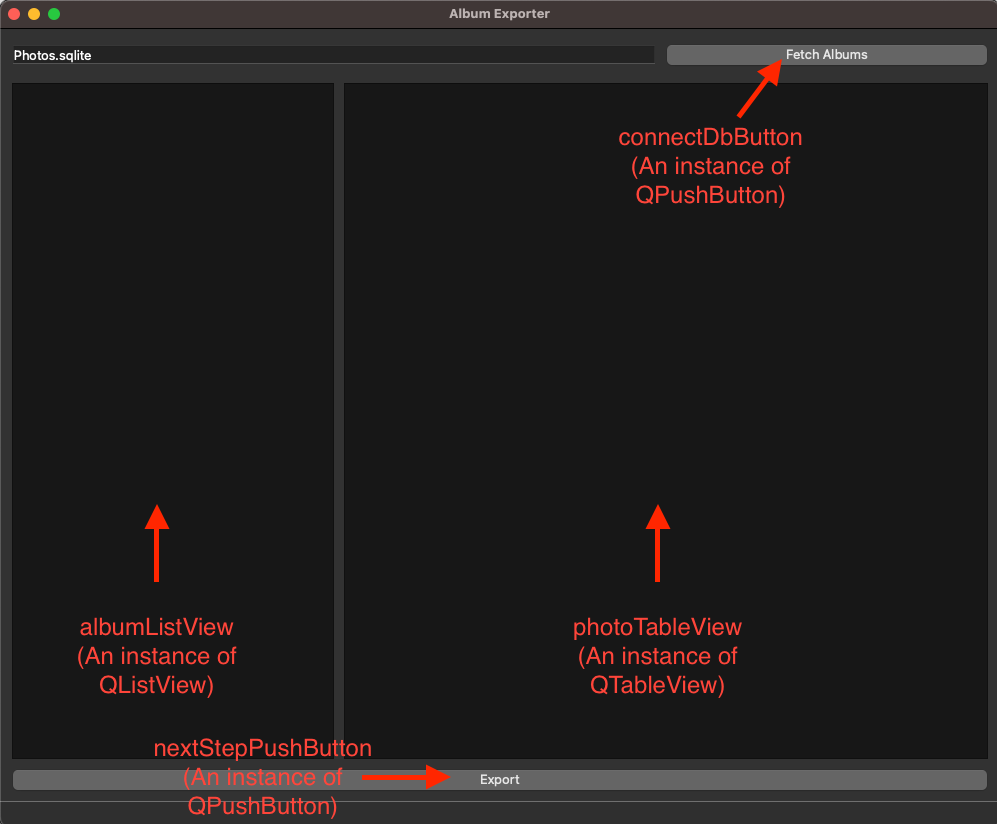
The UI is currently laid out in a single QMainWindow view. The components are as in the pictures.
Project Layout
The app was created using the Qt Creator and is perhaps better viewed using the Qt IDE as well. For example, Qt Creator will at least break the files into the Header files and Source files instead of laying all of the files in the root directory. Here is what it looks like in Qt Creator.
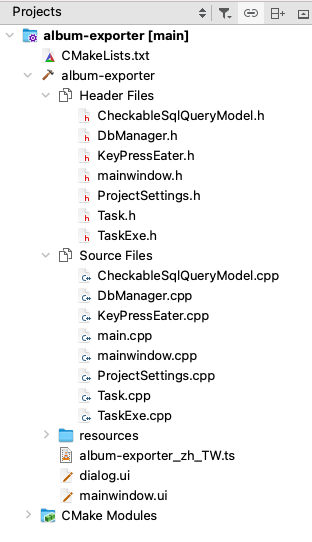
Below is the list of the header files and the brief summary of what they do.
- CheckableSqlQueryModel.h:
Inherits QSqlQueryModel and implements functions such as flags() to enable the ItemIsUserCheckable flag so that the QListView can display a checkbox in front of the album list. The implementation follows the method mentioned in Walletfox.com.
- DbManager.h:
Keeps the DB connection and builds the sql query statement to fetch records such as album list (album_list_query ()) and photos in an album (photo_query (const int)).
- KeyPressEater.h:
Handles the space key press event to preview a media file on an selected item in the photos table.
- mainwindow.h:
Defines the main window UI in the app and also maintains the pointers to data models such as _album_list_model and _photos_model. The private slots define the functionalities and behaviors of interaction with the UI components.
- ProjectSettings.h:
Global const strings for things like db path.
- Task.h:
Wraps the actions to be performed on the albums. struct Task represents a single media file with attributes such as its file path and instruction. class TaskManager contains tasks to be done in buckets and the synchronization data structures such as mutex and condition_variable. TaskManager also manages the state of the progress dialog so it needs to inherit from QObject so that it could act on the UI interaction (such as when user clicks on the cancel button on the progress dialog).
- TaskExe.h
Defines the function that process tasks contained in TaskManager.
Interaction with UI
In Qt, the user interactions with the UI components and the corresponding behaviors are managed through the Signals & Slots mechanism. The official documentation provides a much more detailed discussion on this topic. Essentially, signals are emitted when events happen (such as when user clicks a button or selects an item in a QListView). The slots are callback functions that handle these signals. Therefore, in a typical setup, you will have a QWidget class (or any derived subclass) that emits the signal when user interacts with the class and another class that defines a function in slots to handle the signal.
The signal/slot relationship is set up through a call to connect. For example, in the constructor of my mainwindow.cpp, the code will set up the signal of QPushButton::released in connectDbButton with a slot function called fetch_album_list.
mainwindow.cpp: constructor
MainWindow::MainWindow (QWidget *parent)
    : QMainWindow (parent), ui (new Ui::MainWindow)
{
  ui->setupUi (this);
  _key_press_eater = new KeyPressEater (ui->photoTableView, parent);
  ui->dbPathLineEdit->setText (QString::fromStdString (PROJECT::PHOTO_DB_NAME));
  ui->photoTableView->installEventFilter (_key_press_eater);
  connect (ui->connectDbButton, &QPushButton::released, this,
           &MainWindow::fetch_album_list);
  connect (ui->nextStepPushButton, &QPushButton::released,
           this, &MainWindow::act_on_next);
}
The following call to connect sets up another button click signal with the slot function act_on_next. Note that you’re passing in the functions as objects in the arguments to connect instead of invoking them. Therefore, it’s not passed in as fetch_album_list () or act_on_next ().
Moreover, make sure to set up the signal/slot relationship before the user is expected to interact with the UI. Also, depending on the UI behavior, the connect call is not necessarily invoked in the constructor. For example, in the app, after an user selects an album, the app shows a list of the containing photos/videos in the QTableView and I only hook up the selectionChanged signal and the fetch_photos slot after the app has done fetching the album list. Since the QListView’s model is only properly set up when fetch_album_list is called, this signal/slot is set up in MainWindow::fetch_album_list. If I had placed this connect in the constructor, the selectionModel would have pointed to an incorrect instance of the data model (actually the model album_list_model is a nullptr when MainWindow initializes since my implementation initializes _album_list_model{} through the default constructor).
mainwindow.cpp: fetch_album_list
void
MainWindow::fetch_album_list ()
{
  // ... code to fetch the albums and display them in QListView

  /* Add signal to handle list view selectionChanged
     event only when query model is hooked up with
     the list view. */
  connect (ui->albumListView->selectionModel (),
           &QItemSelectionModel::selectionChanged, this,
           &MainWindow::fetch_photos);
}
Keyboard Event
The app allows the user to preview a media file when she presses the space key in the keyboard while a file is selected in the QTableView. The keyboard event is handled through Qt’s event loop system and programmers can customize the behavior in the keyboard events by writing custom code targeting the specific keyboard events. There are different ways to implement the desired functionality and my current implementation installs a KeyPressEater class as the event filter for the QTableView. Since the QTableView and KeyPressEater can be properly constructed at MainWindow::MainWindow, I have called ui->photoTableView->installEventFilter (_key_press_eater); in the MainWindow’s constructor.
Specifically, I have a switch statement to pick up the Key_Space event. Although an if statement would be sufficient, this implementation could instead be extended to support other keyboard event easily. Also, since the app only handles the space key event, we would need to call the default eventFilter for any event that is not part of our custom behavior. Therefore, the code will call the default eventFilter by invoking QObject::eventFilter (obj, event) after we intercept the targeted events.
KeyPressEater.cpp: eventFilter
bool
KeyPressEater::eventFilter (QObject *obj, QEvent *event)
{
  if (event->type () == QEvent::KeyPress)
    {
      /* Cast obj to QTableView when the object sending the
         key event is matched. */
      if (obj != nullptr && obj == _target_view)
        {
          QKeyEvent *key_event = static_cast<QKeyEvent *> (event);
          switch (key_event->key ())
            {
            case Qt::Key_Space:
              preview_media (obj);
              break;
            default:
              break;
            }
          return true;
        }
    }

  return QObject::eventFilter (obj, event);
}
The preview operation is executed in a child process by invoking the executable qlmanage, which can be found in /usr/bin/qlmanage. qlmanage works slightly differently from the Preview app in MacOS. The most notable difference is in the case of previewing a video file. In the Preview app, when a video file is previewed, it automatically plays the video. While in qlmanage, user has to explicitly click on the play button. I was not able to find an invoking argument that would automatically playing the video, so I would just leave it as is. After qlmanage is launched in child process, the parent process will block until the child process exits since there is a call to proc.waitForFinished () after the child process is spawned.
KeyPressEater.cpp: spawn_proc
static void
spawn_proc (const QString &media_path)
{
  const QString program = QString::fromStdString (PROJECT::PREVIEW_APP);
  const QString path_prefix
      = QString::fromStdString (PROJECT::PHOTO_ORIGINALS);
  QStringList arguments;
  arguments << "-p" << path_prefix + "/" + media_path;

  QProcess proc{};
  proc.start (program, arguments);

  /* Main process will block until the previous process ends. */
  if (!proc.waitForFinished ())
    qDebug () << "something's wrong";
}
Worker Threads and Synchronization
The actual processing (exporting) of the image files are done in the worker threads. The relevant code spreads across Task.cpp, TaskExe.cpp, and mainwindow.cpp. Since the multi-threading and synchronization implementation probably deserves a section of its own, I’ll instead discuss the details of my implementation in a separate post.
Packaging the App
I use the following command to package the app into a standalone application. Deployment and packaging are rather complicated since the packaging is done through the methods not officially supported by Apple. However, to use the standard way of app deployment, you’ll probably need to port the build information into xcode project files. Although there is some discussion in Qt’s documentation, I have yet found the proper way to do so. Instead, I rely on this post to package the app. It might be an useful starting point for anyone who likes to dig deeper. Currently, I found the whole deployment process rather confusing and it involves a lot of manual steps. Unfortunately, I have yet found an elegant way to address the issue and there are relatively few discussions in the community regarding this topic either.
# In the build directory where the album-exporter.app locates
macdeployqt album-exporter.app -always-overwrite -libpath=~/Qt/6.4.2/macos/
The script will pack the dependencies in the bundle and put them in a folder called Frameworks. The Framework folder alone occupies 79 mb although the app itself is only few hundred kb.

Also, I added a custom Info.plist to specify things such as the Photo Library usage in the Privacy section. The app icon is put in the resources folder and will be packaged into the app bundle’s Resources folder. The section that specifies the app icon is shown below.
CMakeLists.txt
#! [appicon_macOS]
    set(MACOSX_BUNDLE_ICON_FILE album-exporter.icns)
#    # And the following tells CMake where to find and install the file itself.
    set(app_icon_macos "${CMAKE_CURRENT_SOURCE_DIR}/resources/album-exporter.icns")
    set_source_files_properties(${app_icon_macos} PROPERTIES
           MACOSX_PACKAGE_LOCATION "Resources")
#! [appicon_macOS]
The source code is located in github