A Look into Synology’s Photo Station app
I purchased a Synology DS214Play NAS few years ago and it has served as my primary photo storage and media file server. The NAS was shipped with a preinstalled application called Photo Station that allows users to manage photos and videos through a web interface. Since it’s becoming less and less performant lately, I decided to take a closer look at how the app is run and what might have caused the performance issue. This blog is mostly documenting the various resources needed to operate the Photo Station app.
Table of Contents
- Where are the files located?
- The App structures and the WebAPIs
- Photo/Video Upload WebAPI
- Other dependencies in the Photo Station app
- Final notes
Where are the files located?
My NAS runs DSM 6.2 and Photo Station 6. It appears Photo Station 6 has not been updated since 2021 and Synology rolled out a newer photo app called Synology Photos. So for anyone owning a newer Synology NAS, the photo app preinstalled is probably Synology Photos instead of Photo Station. It seems these two are completely different apps and Synology Photos’ source is mostly in JavaScript (built from NodeJS?) while Photo Station’s backend is written in PHP with some JavaScript for the web interface.
Since the NAS runs a version of linux operating system, for anyone who’s familiar with linux, it’s actually quite easy to ssh into the operating system and take a closer look at how Photo Station operates under the hood. First, you should enable the ssh service in DSM and you could follow the instruction here. Once we ssh into the Synology NAS, we could navigate to the folder where the Photo Station app is stored.
# Default port is 22 so leave it blank if you do not configure a custom port
ssh -p [port] [username]@[synology-nas-ip]

# cd to the services folder
cd /var/packages
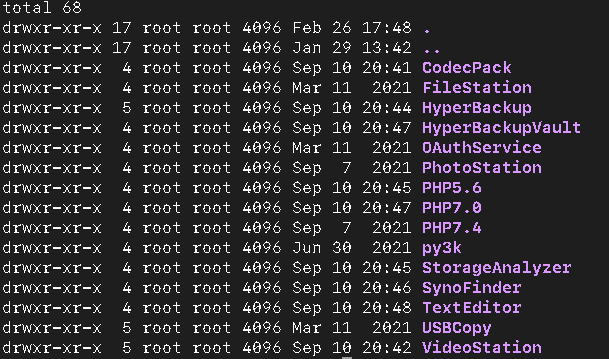
Here is a screenshot of what I see in my packages folder. The packages folder also contains a bunch of other apps written by Synology, such as FileStation or VideoStation.
The majority of the source code for Photo Station is located in /var/packages/PhotoStation/target/photo. Inside, the subfolder webapi contains the endpoints that serve as the interfaces between the user and the app. These endpoints are written in PHP and are stored in separate files with names like album.php, file.php, thumb.php, and etc.
There are also scripts with extension of .sh that help run some tasks such as setting up the database or updating the Photo Station app itself. To take a closer look at these, you might want to look at this folder: /var/packages/PhotoStation/target/photo_scripts.
The App structures and the WebAPIs
In the /var/packages/PhotoStation/target/photo/ folder, the project’s source code is stored in the subfolders. For exmpale, /var/packages/PhotoStation/target/photo/include subfolder contains the header files, class definitions, or some of the global variables/constants. It might be useful to take a look at files such as syno_defines.php since it contains project-wide settings and definitions that are used throughout the entire app. The log.php defines an useful class PhotoLog and you could use the static function PhotoLog::Debug in many of the WebAPIs to output some message to get yourself oriented while you play around with the source code to see how the program operates in the runtime. log.php defines a log file located at /tmp/synophoto_log and you could open another terminal and follow the the log. For example,
tail --follow /tmp/synophoto_log
As for the WebAPIs, although there is no official documentation, since all of the APIs are written in php, it’s possible to just look into the code to figure out what each one is doing. For a complete list of APIs, look at the file PhotoStation.api. For each of the APIs, the PhotoStation.api defines the path of the API source code and available methods. Also, you could use the PhotoLog class mentioned above and just insert a line of PhotoLog::Debug("the value of some varialbe is " . $someVariable) to inspect the value of someVariable.
Also, there is a very useful post by jbowen.dev. The author even documented the uses for many of the APIs! My goal is not to document the APIs again and I’m mostly interested in the APIs for file uploading and images serving and the file locations in the filesystem in NAS.
Photo/Video Upload WebAPI
The photo and video uploading API is implemented in file.php and I’ve implemented a C++ library with a coworker to work with the API. The repo is called syno-uploader and feel free to take a look at the project and give us some feedback.
Once photo or video file is uploaded, the original file and its thumbnails will be stored in albums folders inside /volume[xx]/photo. It should not be hard to find where the files are at. For example, if a file of photo.jpg is uploaded to an album called dev/sub_folder, the original image file will be stored in /volume1/photo/dev/sub_folder/photo.jpg. The thumbnails saved during the uploading are /volume1/photo/dev/sub_folder/@eaDir/photo.jpg/SYNOPHOTO_THUMB_M.jpg and /volume1/photo/dev/sub_folder/@eaDir/photo.jpg/SYNOPHOTO_THUMB_XL.jpg. Since you are able to send a single http request with an original file and two thumbnails (a smaller one and a larger one), all three files will be written into the filesystem after the request is processed successfully. After files are uploaded, the Photo Station app will serve these media files from these locations.
Other dependencies in the Photo Station app
Nginx
The app uses Nginx to serve the web requests. The config file for the Photo Station website is at /etc/nginx/conf.d/www.PhotoStation.conf. The error logs could be looked up in Nginx’s log. You could open another terminal and follow the execution of the app.
tail --follow /var/log/nginx
PostgreSQL
The app also writes data into a PostgreSQL database. It might be interesting to see how the database is structured. /var/packages/PhotoStation/target/photo_scripts/sql/photo.pgsql defines sql instructions to create the tables used in the app. You could also take a look at the database schema using the psql command.
# Login and execute psql on database "photo"
sudo psql -U postgres photo

# List all the tables inside the database "photo"
\dt+

# Query the top 100 records in table photo_image
SELECT * from photo_image limit 100;
Final notes
Photo Station has quite many features, such as authentication, sharing, commenting, tagging, and etc. Although I have not used many of its provided functions, for a customer-oriented app, it is a decent app.
However, there is some room for improvement. For example, the browsing becomes really slow for albums containing large numbers of photos or videos. It took around 10 seconds to fully load an album with slightly less than 200 photos in my machine. Some of my albums contain over 1,000 files! The user experience in browsing these albums is bad. Originally, I thought the issue is with the hardware and perhaps the CPU and RAM are not powerful enough to handle albums with this size. However, after taking a closer look, I think the issue has more to do with how the WebAPI is structured and how the contents are served.
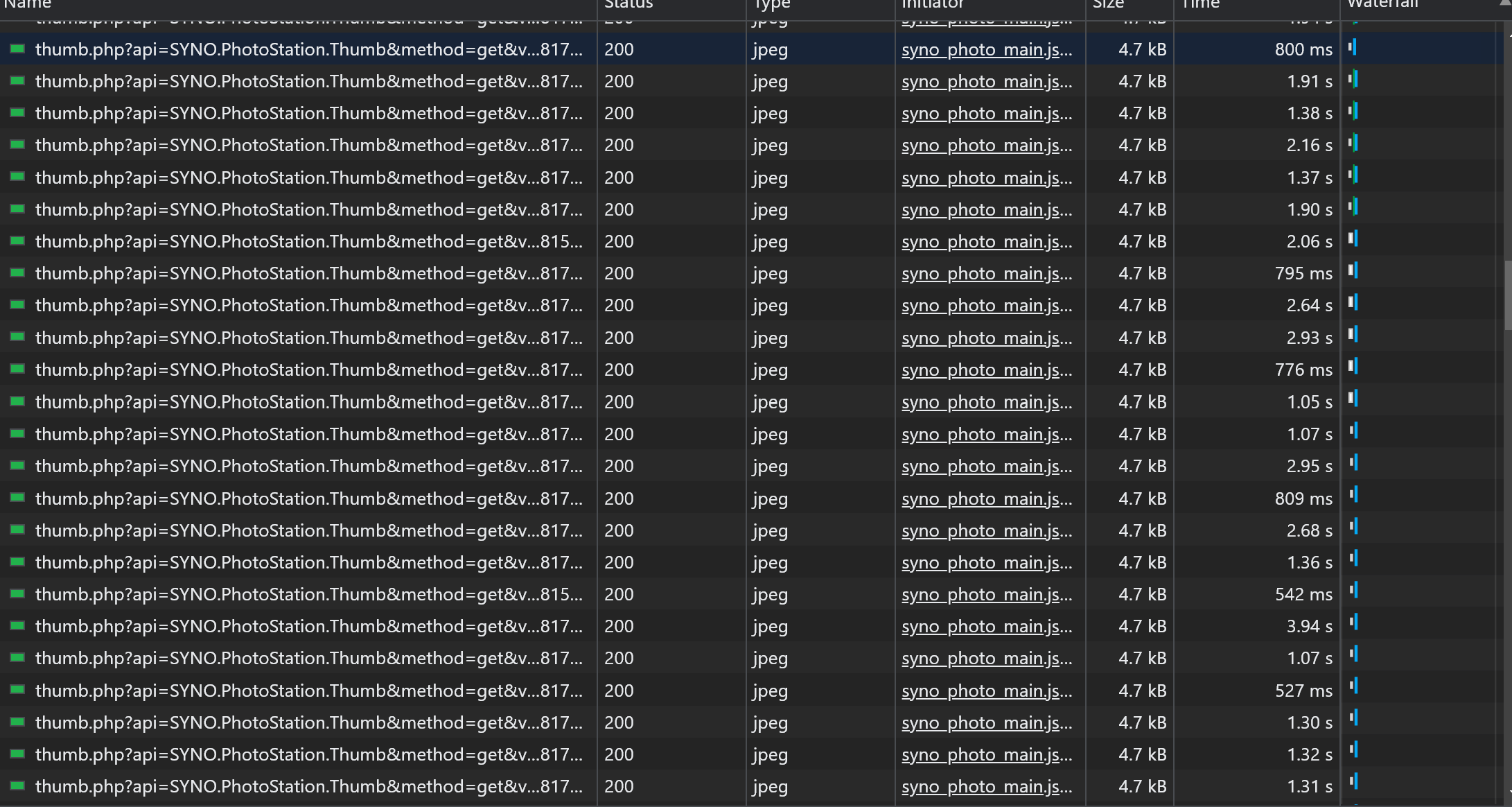
As the user clicks on one of the albums, the browser starts loading the thumbnails (not the actual photo files, whose file sizes are much larger than those of the thumbnails). Each thumbnail will have a fetch request against the thumb.php API. Since Photo Station cannot process multiple requests at once, most of the requests need to be queued for their turns to be fulfilled. Even in a single user case, some of the thumbs only get rendered after few seconds. For example, the screenshot of Chrome’s developer console’s network tab shows the time needed to resolve thumbnail fetch requests ranges from hundreds of milliseconds to few seconds.
At the same time, there are a lot of computing resources in the NAS sat idled. In my test, the CPU ran at most 30%, memory usage barely changed, and, strangely, the network sent less than few kb/s. Below is a screen recording of the resource usage in DSM’s resource monitor. According to the recording, the resources are not utilized efficiently at all.
My speculation is that it is the number of thumb requests, not the total size of the data requested, overwhelmed the app. Also, after request came in at thumb.php, the code needs to resolve the authentication and path lookup for the actual thumbnail location in the NAS’ filesystem, a lot of the work seems really redundant since the requests are for one single album and from one single user.
Also, since each request only sends few KBs (that’s the size of a typical thumbnail), much of the waiting is due to the overhead of sending and responding http requests. It seems much of that could be avoided if requests could be grouped into a batch request to cut down the overhead as much as possible. That way, it should create a much better user experience and a better app.